
Mastering essential keyboard shortcuts is the single fastest way to level up your productivity. How much of your day is actually spent dragging your mouse across the screen? If you added it up, you might be shocked.
While the mouse is great for browsing, the keyboard is the engine of efficiency. Learning just a few key combinations can shave seconds off every task. According to official documentation from Microsoft Support, these shortcuts are built deeply into the operating system to help you navigate faster.
Here are the top 10 essential keyboard shortcuts for Windows and macOS that you need to memorize right now.
Table of Contents
Here are the top 10 essential keyboard shortcuts for Windows and Mac that you need to memorize right now.
- Windows:
Ctrl+Shift+T - Mac:
Cmd+Shift+T
We have all been there: you have 20 tabs open, you’re clicking through them quickly, and—oops—you accidentally close the one you needed most. Instead of digging through your browser history, just hit this combo. It instantly reopens the last closed tab exactly as you left it. You can even press it multiple times to reopen the last several tabs.
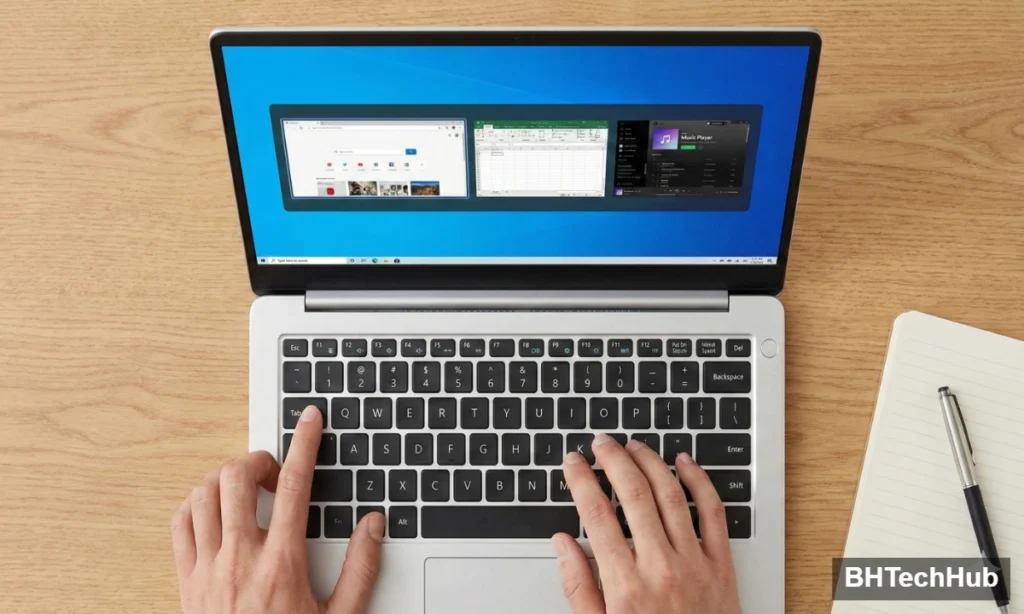
2. The “Multitasker” (Switch Apps Instantly)
- Windows:
Alt+Tab - Mac:
Cmd+Tab
This is the grandfather of all productivity shortcuts. Stop minimizing windows to find the app hidden behind them. Holding down Alt (or Cmd) and tapping Tab lets you cycle through every open application visually. It is the fastest way to flip between a spreadsheet and an email without breaking your flow.
3. The “Time Machine” (Undo & Redo)
- Undo:
Ctrl+Z(Mac:Cmd+Z) - Redo:
Ctrl+Y(Mac:Cmd+Shift+Z)
Everyone knows Ctrl + Z undoes a mistake. But fewer people know about its partner, Redo. If you undo something and then realize you actually wanted it, don’t re-type it! Just hit Redo. This works in almost every application, from Microsoft Word to Photoshop.
4. The “Speed Eraser” (Delete Entire Words)
- Windows:
Ctrl+Backspace - Mac:
Option+Delete
If you make a typo at the end of a sentence, pecking the Backspace key ten times is slow. Holding Ctrl (or Option on Mac) while pressing delete will remove entire words at a time. Once you get used to this, standard deleting feels painfully slow.
5. The “Sniper” (Instant Screenshots)
- Windows:
Win+Shift+S - Mac:
Cmd+Shift+4
Gone are the days of hitting “Print Screen” and pasting the whole messy desktop into Paint.
- On Windows: This opens the “Snipping Tool,” allowing you to drag a box around exactly what you want to capture. It copies it directly to your clipboard.
- On Mac: This turns your cursor into a crosshair to capture a specific selection.
6. The “Detective” (Find in Page)
- Windows:
Ctrl+F - Mac:
Cmd+F
Never read a whole document just to find one specific piece of information. Whether you are on a webpage, a PDF, or a Word doc, this shortcut opens a search bar. Type your keyword, and it will highlight every instance of it instantly.
7. The “Privacy Guard” (Lock Screen)
- Windows:
Win+L - Mac:
Cmd+Ctrl+Q
Walking away to grab a coffee? Don’t leave your email open for prying eyes. This shortcut instantly locks your computer, requiring a password to log back in. It is a fundamental security habit that takes less than a second.
8. The “Desktop Dive” (Minimize All)
- Windows:
Win+D - Mac:
Fn+F11(orCmd+F3depending on settings)
Sometimes you have too much clutter and just need a clean slate (or need to find a file saved on your desktop). This shortcut instantly minimizes everything, showing you the desktop. Press it again, and all your windows snap back to where they were.
9. The “Super Copier” (Clipboard History)
- Windows:
Win+V - Mac: (Requires 3rd party apps like CopyClip)
Windows Users Exclusive: If you only use Ctrl + C, you can only copy one thing at a time. But if you press Win + V, you open the Clipboard History. This lets you see a list of the last 10-20 things you copied and paste any of them. Note: You may need to turn this on in Settings > System > Clipboard first.
10. The “Address Jumper” (Highlight URL Bar)
- Windows:
Ctrl+L(orAlt+D) - Mac:
Cmd+L
When you want to visit a new website, don’t reach for the mouse to click the bar at the top of your browser. This shortcut instantly highlights the current URL, letting you immediately start typing a new search or website address.
Conclusion: Start with Just Three
Trying to memorize all 10 at once might feel overwhelming. Start with just three. Once these essential keyboard shortcuts become muscle memory, you won’t just be faster—you’ll wonder how you ever used a computer without them.
Want more tech tips? Read our comparison on Hard Disk vs SSD vs NVMe to speed up your hardware, not just your typing.
Frequently Asked Questions (FAQ)
Q: Do these shortcuts work on Windows 11?
A: Yes! All the Windows shortcuts listed above work perfectly on Windows 10 and Windows 11.
Q: Can I customize my keyboard shortcuts?
A: Most applications allow you to customize shortcuts in their “Settings” or “Preferences” menu. However, system-wide shortcuts (like Win + L) usually cannot be changed easily without special software.
Q: Why is my Ctrl + C not working?
A: Ensure your keyboard is clean and the keys aren’t stuck. If the issue persists, try restarting your computer or checking if a specific program is blocking the shortcut.