
If you want to optimize PC for gaming, you don’t necessarily need to buy a $1,000 graphics card. Many gamers think the only way to get better performance is expensive hardware, but often, your current PC is capable of much more than it’s giving you.
There is nothing worse than lining up the perfect shot in Valorant or Call of Duty, only to have your screen freeze or stutter. In the world of competitive gaming, every millisecond counts. Hidden settings, outdated drivers, and thermal throttling can kill your frame rates.
If your PC is lagging even when you aren’t playing games, you might want to start with our basic troubleshooting guide on Why Is My Computer So Slow?
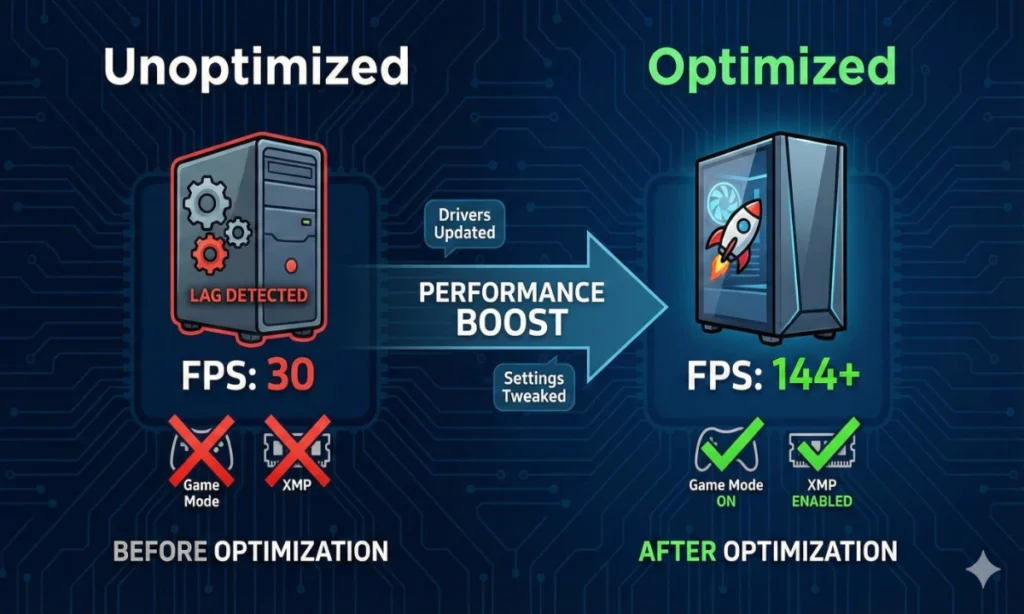
In this guide, we’ll walk you through 5 essential steps to optimize your PC for gaming and boost your FPS without spending a dime.
Table of Contents
1. Optimize PC for Gaming with Windows Game Mode
Windows 10 and 11 have built-in features designed to prioritize gaming over background tasks. Years ago, “Game Mode” was buggy, but today, it is essential.
How to do it:
- Press the Windows Key and type “Game Mode.”
- Toggle Game Mode to ON.
- Next, type “Choose a power plan” in the start menu.
- Select High Performance. (Note: If you don’t see it, click “Show additional plans”).
Why this works: It prevents Windows from performing updates or virus scans while you are gaming and ensures your CPU runs at maximum frequency.
2. The Secret RAM Setting: Enable XMP / DOCP
This is the most common mistake in PC building. If you bought fast RAM (e.g., 3200MHz or 3600MHz), it likely runs at a slow default speed (2133MHz) out of the box. You aren’t getting the speed you paid for unless you enable it in the BIOS.
How to fix it:
- Restart your computer and mash the Del or F2 key to enter BIOS.
- Look for a setting called XMP (Intel) or DOCP/EXPO (AMD).
- Enable “Profile 1.”
- Save and Exit.
SEO Note: High-speed RAM can increase FPS by up to 15% in CPU-intensive games like Counter-Strike 2 or Fortnite.
3. Optimize PC for Gaming Drivers (NVIDIA & AMD)
Updating your drivers is obvious, but tweaking the control panel settings is where the pro gamers gain an edge.
For NVIDIA Users:
- Right-click your desktop > NVIDIA Control Panel.
- Go to Manage 3D Settings.
- Find Power Management Mode and set it to “Prefer Maximum Performance.”
- Find Texture Filtering – Quality and set it to “High Performance.”
This ensures your GPU doesn’t try to save power during intense gaming moments, preventing those sudden FPS drops.
4. Eliminate Thermal Throttling
Heat is the enemy of performance. If your CPU or GPU hits a certain temperature (usually around 90°C-100°C), it will automatically slow down to prevent damage. This is called Thermal Throttling.
The Maintenance Checklist:
- Dust your PC: Use compressed air to clean dust filters and fans every 3-6 months.
- Check Airflow: Ensure your PC isn’t shoved against a wall or sitting on a carpet (which blocks intake fans).
- Fan Curves: Use software like MSI Afterburner to set an aggressive fan curve, ensuring fans spin faster as the GPU heats up.
5. Disable “Mouse Acceleration” for Aim Consistency
This isn’t an FPS booster, but it is critical for muscle memory. By default, Windows moves your cursor further depending on how fast you move the mouse, not just how far. This ruins aiming consistency in shooters.
How to turn it off:
- Type “Mouse Settings” in Windows search.
- Click Additional mouse options.
- Click the Pointer Options tab.
- Uncheck the box that says “Enhance pointer precision.”
Summary: The Gamer’s Optimization Cheat Sheet
| Tweak | Difficulty | Benefit |
| Windows Game Mode | Easy | Reduces background interference |
| Enable XMP (RAM) | Medium | major FPS boost in CPU-heavy games |
| High Perf. Power Plan | Easy | Keeps CPU frequency high |
| Clean Dust | Medium | Prevents throttling/stuttering |
| Disable Mouse Accel | Easy | Better aiming consistency |
Applying these tweaks ensures your hardware is running at its absolute limit. Before you go out and buy a new GPU, make sure you’ve optimized the one you already have!
Pingback: How to Download CorelDRAW 2026 – Complete & Safe Step-by-Step Guide
Pingback: Fix All DLL Errors in 1 Click: The Ultimate AIO Runtimes Guide
Pingback: How to Remove Individual Search Suggestions in Any Browser
Pingback: How to Fix Error Code 0xc0000005 on Windows: 5 Best & Proven Solutions - BH Tech Hub
Pingback: Instant Windows 11 Compatibility Check: Is Your PC Ready?
Comments are closed.