
The “Missing DLL” Nightmare
Table of Contents
Do you need to fix all DLL errors that keep crashing your PC games? We have all been there. You just finished downloading a massive 50GB game, you double-click the icon, and suddenly—CRASH. A jagged error window pops up:
“The program can’t start because msvcp140.dll is missing from your computer. Try reinstalling the program to fix this problem.”
Whether it is vcruntime140.dll, d3dx9_43.dll, or the dreaded 0xc000007b error code, these missing files are the #1 cause of gaming crashes on Windows. The good news? You don’t need to be a tech wizard to fix them. You just need the All in One (AIO) Runtimes package.
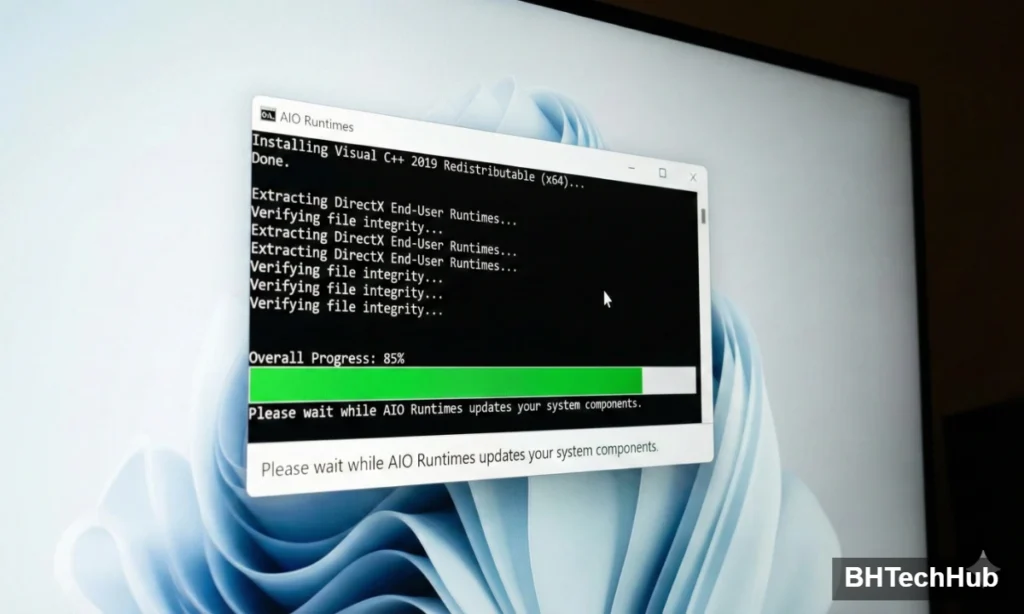
What Are “Runtime” and Why Do They Break?
Windows software relies on shared libraries called “runtimes.” Instead of every game writing its own code to draw graphics or play sound, they borrow code from Microsoft’s shared libraries.
The most common culprits for errors are:
- Visual C++ Redistributables: Required for almost all modern software.
- DirectX End-User Runtimes: Essential for 3D graphics and gaming.
- Microsoft .NET Framework: The backbone of many Windows applications.
If your PC is fresh or an update went wrong, you might be missing these specific versions.
The Solution: AIO Runtimes (All in One)
Instead of hunting down 20 different installers from Microsoft’s website, an AIO Runtime pack is a single installer that contains all the necessary libraries.
Why Use an AIO Pack?
- Time-Saving: Installs Visual C++ 2005, 2008, 2010, 2012, 2013, 2019, and 2022 in one go.
- Smart Detection: It skips runtimes you already have and only installs missing ones.
- Fixes “Side-by-Side” Errors: It ensures both x86 (32-bit) and x64 (64-bit) versions are installed correctly.
How to Download and Install AIO Runtimes Safely
Warning: The internet is full of fake “DLL Fixer” tools that are actually malware. Never download a single .dll file from a random website. Always install the full official runtime package.
Step 1: Choose a Reputable Source
For the best safety and stability, we recommend the Visual C++ Redistributable Runtimes All-in-One from TechPowerUp or the classic Sereby All in One Runtimes from ComputerBase.
Step 2: The Installation Process
- Download the zip file from a trusted tech repository (like TechPowerUp or MajorGeeks).
- Extract the folder to your desktop.
- Right-click the
install_all.bat(or.exe) file and select “Run as Administrator”. - Wait as the script cycles through each version. You will see several command prompt windows open and close.
- Restart your computer once finished.
Common Errors This Will Fix
Once you have run the AIO installer, the following errors usually vanish instantly:
MSVCP140.dll/MSVCP120.dllVCRUNTIME140.dlld3dx9_43.dll(and other DirectX errors)XINPUT1_3.dll(Controller issues)0xc000007b(The “Application was unable to start correctly” error)
Pro Tip: The “Ninite” Alternative
If you prefer a cleaner, more official route than a community-made AIO pack, try Ninite.com.
- Go to Ninite.
- Check the boxes for .NET and all Runtimes.
- Download and run the installer.It grabs the official installers directly from Microsoft and runs them silently in the background.
Conclusion
Don’t let a missing 50KB file stop you from enjoying your PC. By keeping your runtimes updated with an AIO package, you ensure that your system speaks the same language as your software.
Ready to fix your PC? Stop searching for individual files and grab an AIO package today.
“Now that you have managed to fix all DLL errors, your system should be stable. However, stability is just the first step. To get the highest FPS possible, check out our complete [guide to optimizing your PC for gaming] to ensure your hardware is running at peak performance.”
Frequently Asked Questions (FAQ)
Is it safe to use AIO Runtime packs?
Yes, as long as you download them from reputable sources like TechPowerUp, MajorGeeks, or ComputerBase. These packages simply bundle official Microsoft installers into one file. Avoid downloading “cracked” versions or random .exe files from unknown sites.
Will this fix the 0xc000007b error?
Absolutely. The 0xc000007b error usually happens when a 64-bit application tries to load a 32-bit DLL (or vice versa). The AIO Runtimes installer automatically installs both the x86 and x64 versions of Visual C++, which corrects this mismatch and allows you to fix all DLL errors related to architecture conflicts.
Does AIO Runtimes work on Windows 11?
Yes. The standard AIO packages are fully compatible with Windows 7, 8, 10, and Windows 11. They detect your operating system and only install the files that are compatible with your version.
Do I need to uninstall old Visual C++ versions first?
It is recommended but not always required. The AIO installer is smart enough to update existing files. However, if you are still seeing errors after running the tool, try uninstalling all existing “Visual C++ Redistributable” entries in your Control Panel > Programs and Features, restart your PC, and then run the AIO installer again.
Pingback: How to Use ChatGPT for Coding: 5 Insane Hacks for Developers
Pingback: Master the Best Windows CMD Commands: The Amazing 2026 Guide
Comments are closed.