
Introduction
If you want to dominate the competition on PC, you need the Best GameLoop Settings for PUBG Mobile. Playing on an emulator gives you a precision advantage, but without the right configuration, you will suffer from stuttering and frame drops exactly when it matters most.
In this guide, we will break down the ultimate configuration to achieve a stable 90 or 120 FPS. whether you have a high-end rig or a budget laptop, applying the Best GameLoop Settings for PUBG Mobile is the only way to ensure your gameplay is smooth, responsive, and lag-free in 2026.
Table of Contents
Step 1: The Essential Prerequisites
Before opening the emulator, you must ensure your PC is ready to handle virtualization.
1. Enable Virtualization (VT)
This is non-negotiable. If Intel VT-x or AMD-V is disabled in your BIOS, GameLoop runs on a software layer that is 5x slower.
- Check Status: Open Task Manager (
Ctrl + Shift + Esc) > Performance > CPU. Look for “Virtualization: Enabled”.
2. Windows Power & Graphics Settings
Tell Windows to prioritize the emulator over background apps.
- Power Plan: Go to Control Panel > Hardware and Sound > Power Options and select High Performance (or Ultimate Performance if available).
- GPU Scheduling:
- Search for Graphics Settings in Windows.
- Click Browse and locate your GameLoop executables (usually in
C:\Program Files\TxGameAssistant\ui). - Add
AndroidEmulator.exeandAppMarket.exe. - Set both to High Performance.
Optimizing your emulator is useless if your operating system is outdated. To get the best gaming performance, ensure you are running the latest OS version. Read our guide on [why the Windows 11 upgrade is crucial for modern PC gaming] to learn more.
Step 2: Best GameLoop Engine Settings (2026 Updated)
Open GameLoop, click the three horizontal lines (Menu) > Settings > Engine. This is where the magic happens.
Rendering Engine
- OpenGL+: The best choice for most users with a dedicated GPU (NVIDIA/AMD). It offers the most stable frame rates.
- DirectX+: Use this only if you have a weak CPU (less than 4 cores) or are relying on integrated graphics. It prioritizes CPU stability over raw graphical speed.
Detailed Configuration
| Setting | Low-End PC (4GB RAM / No GPU) | High-End PC (16GB+ RAM / RTX GPU) |
| Enable Rendering Cache | ✅ Checked | ✅ Checked |
| Enforce Global Cache | ✅ Checked | ✅ Checked |
| Prioritize Discrete Card | ❌ Unchecked | ✅ Checked |
| Rendering Optimization | ✅ Checked | ✅ Checked |
| Anti-Aliasing | Close (OFF) | Close (OFF) |
| Memory | 2048MB or 4096MB | 8192MB (Do not exceed half your RAM) |
| Processor | 2 Cores | 4 or 8 Cores (Match physical cores) |
| Resolution | 1280×720 | 1920×1080 (Match your monitor) |
| Screen DPI | 240 | 320 or 480 |
PRO TIP: Never leave the Processor setting on “Auto.” GameLoop often miscalculates core counts, leading to stutters. Manually set it to the number of physical cores your CPU has (e.g., for a Ryzen 5 5600X, select 6).
Step 3: Unlocking 120 FPS (Model & Game Tabs)
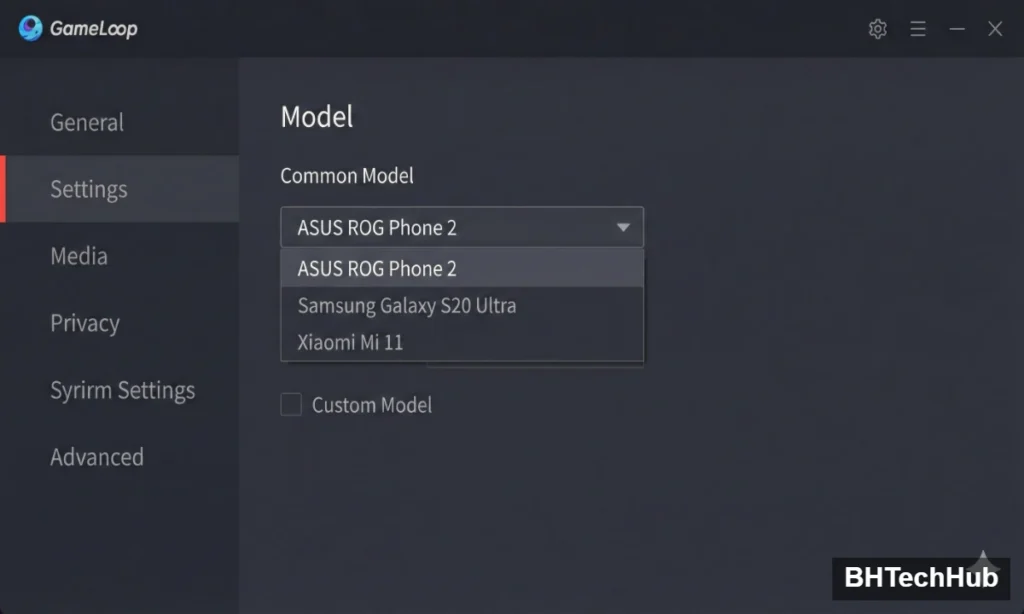
Model Settings
Go to the Model tab.
- Common Model: Select ASUS ROG Phone 2 or ROG Phone 6. These models are whitelisted by Tencent to support high refresh rates (90/120 FPS).
Game Settings
Go to the Game tab.
- Game Definition:
- SD 720P: For GTX 660 or lower.
- HD 1080P: For GTX 1050 Ti or higher.
- FHD 2K: Only for RTX 3060 or higher.
- Graphics Quality: Set to Smooth. Even if you have a high-end PC, “Smooth” renders player textures faster and makes enemies easier to spot.
- FPS: Select 90 or 120. (Note: You must have a 120Hz+ monitor to see the benefit of 120 FPS).
Step 4: In-Game Optimization
Once you launch PUBG Mobile, go to Settings > Graphics & Audio:
- Graphics: Smooth.
- Frame Rate: Extreme+ (90 FPS) or Ultra Extreme (120 FPS).
- Style: Colorful (Higher contrast helps you spot snakes in the grass).
- Anti-Aliasing: Disable (This makes edges jagged but significantly boosts FPS).
- Auto-Adjust Graphics: Disable (Crucial! This setting causes frame drops when the phone “thinks” it is overheating).
Troubleshooting: Common GameLoop Bugs
The “Keymapping Not Working” Bug
If your F, Space, or mouse clicks aren’t registering:
- Ensure your GameLoop Resolution (Engine tab) matches your Game Resolution (Game tab).
- Example: If Engine is 1920×1080, Game must be 1080P. If they mismatch, the key overlay aligns incorrectly.
Stuck at 98% Loading
This is usually an antivirus or driver issue.
- Disable your antivirus temporarily.
- Update your GPU drivers to the latest 2025/2026 version.
- Delete the temp folder: Run
%TEMP%and delete all files.
Conclusion
Optimizing GameLoop in 2026 isn’t just about cranking everything to “Ultra.” It’s about balance. By forcing the emulator to use your GPU via OpenGL+ and disabling unnecessary visual clutter like Anti-Aliasing, you can transform a stuttery mess into a competitive machine.
Ready to drop into Erangel? Apply these settings, restart your emulator, and enjoy the smooth 120 FPS advantage!
FAQ
Q: Is GameLoop 32-bit or 64-bit better for PUBG Mobile?
A: As of 2026, the 32-bit version of GameLoop is generally more stable for PUBG Mobile and has fewer keymapping bugs. Use 64-bit only if you are playing other heavy games like Genshin Impact.
Q: Why is my FPS locked at 60?
A: Check three things: 1) Your monitor refresh rate is set to 60Hz in Windows. 2) Vertical Sync (V-Sync) is ON in NVIDIA control panel (turn it OFF). 3) You haven’t selected a high-end model like ROG Phone 2 in GameLoop settings.
Q: Does increasing RAM in GameLoop help?
A: Only up to a point. GameLoop is a 32-bit application (mostly), so it cannot effectively use more than 4GB-8GB of RAM. Assigning 16GB is usually a waste and can starve your Windows OS, causing background .
Pingback: The Ultimate PUBG Mobile 4.3 Update Guide: 8th Anniversary Features & Release Date
Comments are closed.