
Do you need to check GPU on Linux to verify your hardware specs? Whether you are troubleshooting display drivers, setting up a high-performance gaming rig, or configuring a server for machine learning, knowing exactly which graphics card is running under the hood is essential.
Unlike Windows, where a quick look at the Device Manager works, you might wonder how to check GPU on Linux using the command line or desktop settings. In this guide, we will cover the most effective methods to identify your graphics card on distributions like Ubuntu, Fedora, and Debian.
Table of Contents
Method 1: How to Check GPU on Linux via Command Line
The fastest and most reliable way to check your GPU on any Linux distro is using the terminal. These commands work out-of-the-box on almost all systems.
1. Using lspci (Best for Quick ID)
The lspci command lists all PCI devices. By “grepping” (filtering) for VGA or 3D devices, we can isolate the graphics card.
Open your terminal and run:
Bash
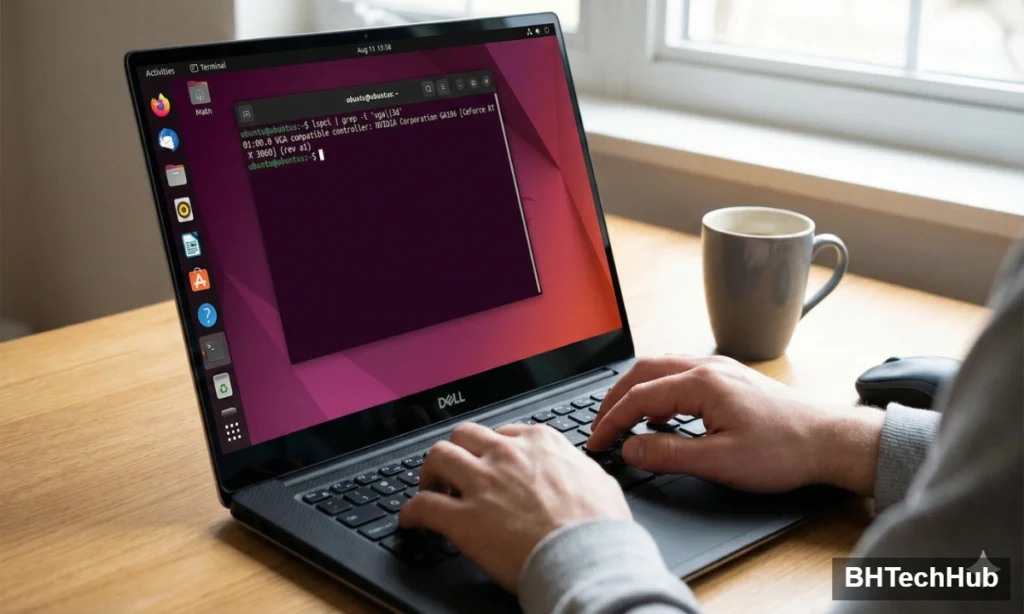
lspci | grep -i 'vga\|3d'
What the output means:
- You will see a line listing your manufacturer (NVIDIA, AMD, Intel) and the model number.
- Example Output:
01:00.0 VGA compatible controller: NVIDIA Corporation GA106 [GeForce RTX 3060] (rev a1)
2. Using lshw (Best for Detailed Info)
If you need more than just the model name—such as driver details, clock speeds, and memory—use lshw (List Hardware).
Bash
sudo lshw -C display
Note: You may need to install it first (sudo apt install lshw on Ubuntu/Debian).
Key details to look for in the output:
- product: The model of your GPU.
- vendor: The manufacturer (e.g., Intel, AMD).
- driver: The kernel driver currently in use (e.g.,
i915,amdgpu,nvidia). This is crucial for troubleshooting driver issues.
Method 2: Vendor-Specific Tools (NVIDIA & AMD)
If you have installed proprietary drivers, you likely have access to specialized tools that provide real-time monitoring and deeper stats.
For NVIDIA Users: nvidia-smi
If you are using proprietary NVIDIA drivers, nvidia-smi is the gold standard. It shows VRAM usage, temperature, fan speed, and power consumption.
Run:
Bash
nvidia-smi
- Pro Tip: Use
watch -n 1 nvidia-smito see live updates every second (great for monitoring loads during gaming or AI training).
For AMD Users: radeontop
While AMD drivers are open-source and integrated into the kernel, you can install radeontop for a task-manager-like view of your GPU.
Bash
sudo apt install radeontop   # Ubuntu/Debian
sudo dnf install radeontop   # Fedora
sudo radeontop
Method 3: The GUI Way (No Terminal Required)
If you prefer a visual interface, most modern Linux Desktop Environments provide hardware details in their settings.
GNOME (Ubuntu, Fedora default)
- Open Settings.
- Scroll down to the About section.
- Look for Graphics or Graphics Processor.
- Note: If you have a dual-GPU laptop (e.g., Intel + NVIDIA), it might only show the one currently active for the desktop environment.
KDE Plasma
- Open the Info Center app.
- Navigate to the Graphics tab.
- Click on OpenGL to see the renderer and driver version.
HardInfo (Third-Party Tool)
For a “Windows Device Manager” experience, install HardInfo.
- Install:
sudo apt install hardinfo - Usage: Launch the app, scroll to PCI Devices, and click on your VGA controller for exhaustive technical specs.
Summary Table: Which Command Should I Use?
| Goal | Command / Tool | Difficulty |
| Quick Model ID | lspci | grep -i vga | Easy |
| Driver & Memory Info | sudo lshw -C display | Medium |
| NVIDIA Live Stats | nvidia-smi | Easy |
| OpenGL Details | glxinfo | grep OpenGL | Medium |
| Visual/GUI Check | Settings > About | Very Easy |
Conclusion
Checking your GPU on Linux is straightforward once you know the right tools. For most users, lspci is the quickest answer, while nvidia-smi is indispensable for NVIDIA power users.
Next Step for You: Open your terminal right now and try running lspci | grep -i vga to see exactly what hardware your kernel is detecting!
Pingback: Best Free PC Programs 2026: Top 10 Essential Tools Everyone Should Have
Pingback: 140+ HTML Color Codes: The Ultimate Cheat Sheet for Stunning Web Design
Comments are closed.