
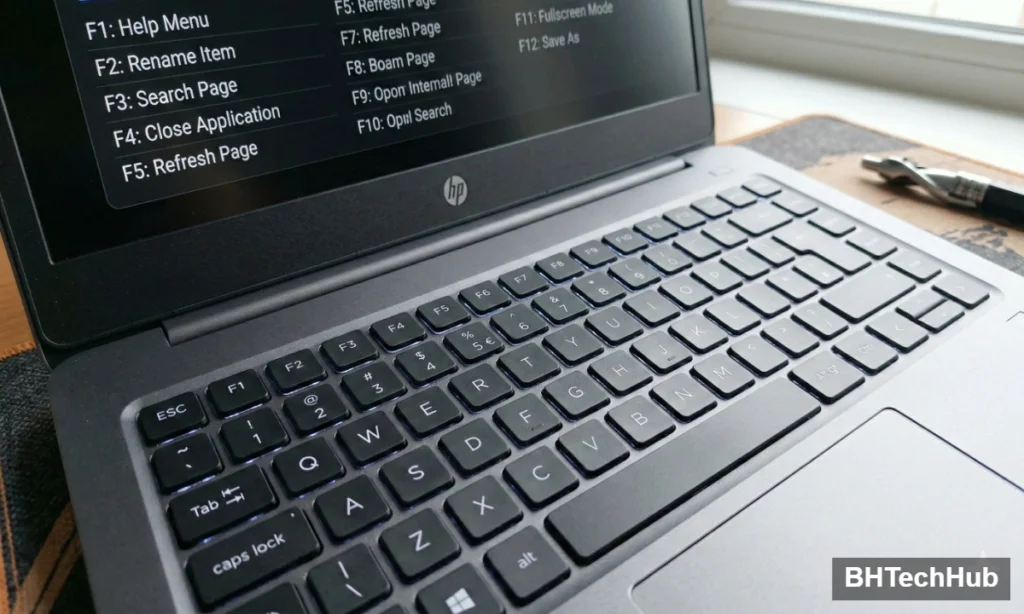
Wondering what the F1 through F12 keys actually do? If you take a look at the top row of your keyboard right above the numbers, you will see this lineup of keys sitting there. If you are like most computer users, you probably ignore them 99% of the time, or perhaps you only use them to adjust your laptop’s volume or screen brightness.
But these are called Function Keys, and they hold a treasure trove of shortcuts designed to make your daily computing faster, easier, and much more productive.
Whether you are a casual web browser or a spreadsheet master, learning these shortcuts will save you countless clicks. Here is your ultimate guide to what the F1 through F12 keys actually do.
Table of Contents
The Ultimate Cheat Sheet for the F1 through F12 keys (Windows & Browsers)
Note: While many of these apply universally, they are primarily geared toward Windows OS and standard web browsers. Mac users, check the section at the bottom!
F1: The “Help Me!” Key
- Universal Help: In almost any program, pressing F1 opens the Help menu or directs you to the software’s support page.
- Windows Key + F1: Opens the Windows Help and Support center.
F2: The Renamer
- Rename Files: Highlight a file or folder on your desktop or in File Explorer, press F2, and you can instantly type a new name without needing to right-click.
- Excel Power Move: In Microsoft Excel, pressing F2 lets you edit the active cell instantly.
F3: The Seeker
- Search Function: In many applications (and Windows File Explorer), pressing F3 activates the search bar so you can start typing immediately to find a file or word.
- Shift + F3 (Word): Changes the text case in Microsoft Word from UPPERCASE to lowercase to Capitalized Every Word.
F4: The Closer
- Address Bar: Opens the address bar dropdown in Windows Explorer or Internet Explorer.
- Alt + F4: The legendary shortcut. This instantly closes the active window or program. If no program is open, it brings up the shutdown screen.
F5: The Refresher
- Reload Page: The most famous function key. Press F5 in any modern web browser (Chrome, Edge, Firefox) to refresh or reload the page.
- Ctrl + F5: Performs a “hard refresh,” clearing the cache for that specific page and downloading all its contents fresh.
- PowerPoint: Starts your slideshow from the very beginning.
F6: The Navigator
- Jump to Address Bar: In web browsers, pressing F6 instantly highlights the URL address bar so you can type a new website without touching your mouse.
- Tabbing: In Microsoft Word, it toggles between the ribbon, task pane, and document.
F7: The Editor
- Spell Check: In Microsoft Word and other Office programs, F7 immediately runs the spelling and grammar check.
- Caret Browsing: In web browsers, it turns on “Caret Browsing,” which places a movable cursor on web pages so you can select text using just your keyboard.
F8: The Troubleshooter
- Safe Mode: Historically used during the Windows boot process to enter Safe Mode (though modern Windows 10/11 handles this a bit differently now).
- Extend Selection: In Excel, it turns on “Extend Mode” for highlighting multiple cells with the arrow keys.
F9: The Updater
- Refresh Word: Refreshes fields in Microsoft Word.
- Email: Prompts Outlook to Send/Receive your emails.
F10: The Menu Master
- Activate Menu Bar: Pressing F10 activates the menu bar of an open application, allowing you to navigate it with the arrow keys.
- Shift + F10: Acts exactly like a right-click on your mouse, opening the context menu for whatever item you have highlighted.
F11: The Immersive Key
- Full Screen: Press F11 in your web browser to enter Full-Screen Mode, hiding the address bar, tabs, and Windows taskbar. Press it again to exit.
F12: The Developer & Saver
- Save As: In Microsoft Office programs (Word, Excel, PowerPoint), pressing F12 instantly opens the “Save As” dialog box.
- Developer Tools: In web browsers, it opens the Developer Tools console (used for inspecting page code).
“As you read through this guide, you will see that mastering the F1 through F12 keys can save you hours of repetitive clicking and make navigating your software much smoother.”
What About Laptops and MacBooks? The “Fn” Key Explained
If you are on a laptop or a Mac, you might notice that your F-keys have little icons on them (like a sun, a speaker, or a play button).
By default, hardware manufacturers map these keys to media and system controls (brightness, volume, playback). To use the actual F1-F12 functions listed above, you need to hold down the Fn (Function) key located near the bottom left of your keyboard while pressing the F-key.
Pro Tip: If you want to reverse this so the F-keys act like traditional function keys without holding “Fn”, look for an Fn Lock key (often the Escape key) or change the setting in your computer’s BIOS or System Settings.
Start Using Them Today!
You don’t need to memorize all twelve of these right away. Pick two or three that sound the most useful for your daily workflow—like F2 to rename files, F5 to refresh, or F11 for full screen—and start practicing them. Once they become muscle memory, you’ll wonder how you ever lived without them.
“Optimizing your workflow doesn’t stop at the keyboard. If you are looking to upgrade your setup, check out our recent guide on comparing CPUs and storage drives for maximum performance.”