
With Windows 10 officially past its end-of-support date, performing a Windows 11 compatibility check has transitioned from an optional step to a cybersecurity necessity.
If you are wondering, “Can my PC run Windows 11?”, you aren’t alone. Here is the definitive guide on how to check your system’s compatibility, how to verify your TPM status, and what your options are moving forward.
Table of Contents
1. The Baseline: Windows 11 Minimum System Requirements
Before running any diagnostic tools, it is helpful to know exactly what Microsoft’s operating system requires under the hood. The strict baseline specs include:
- Processor: 1 GHz or faster with 2 or more cores on a compatible 64-bit CPU (Intel 8th Gen / AMD Ryzen 2000 series or newer).
- RAM: 4 GB minimum (8GB+ highly recommended for optimal performance and gaming).
- Storage: 64 GB or larger storage device.
- System Firmware: UEFI, Secure Boot capable.
- TPM: Trusted Platform Module (TPM) version 2.0.
- Graphics Card: Compatible with DirectX 12 or later with a WDDM 2.0 driver.
- Display: High definition (720p) display, greater than 9” diagonally.
2. The Official Method: Running a Windows 11 Compatibility Check
The fastest way to get a definitive “Yes” or “No” is by using Microsoft’s official diagnostic tool.
- Download the Tool: Head to the official Microsoft website and download the PC Health Check App.
- Install & Launch: Run the simple installation process and open the application.
- Run the Scan: Click the prominent blue “Check now” button located in the Windows 11 banner at the top of the app.
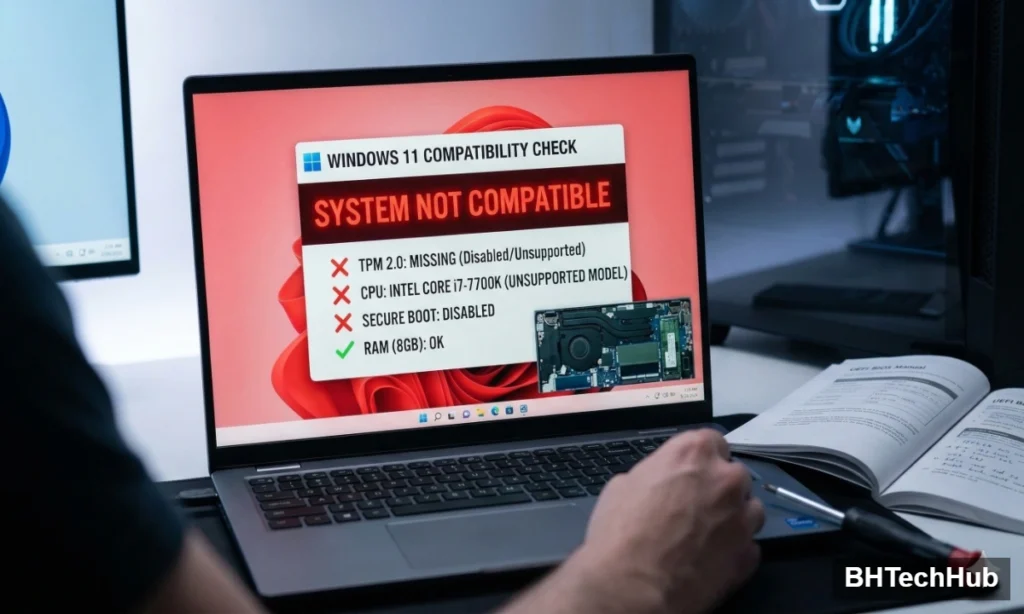
- Review the Results: The app will either give you a green checkmark or a detailed breakdown of exactly which components (such as an unsupported CPU or missing TPM) are holding your system back.
3. The Power User Alternative: WhyNotWin11
Sometimes the official app lacks the granular detail tech enthusiasts need. If you want a deeper dive into your hardware, WhyNotWin11 is a trusted, open-source alternative.
It evaluates your system against every single requirement and outputs a highly readable, color-coded chart:
- Green: Fully compatible and ready to go.
- Red: Hard incompatibility (e.g., an outdated CPU).
- Yellow: A setting that requires a manual change (like enabling Secure Boot or TPM in your BIOS).
4. How to Manually Verify TPM 2.0 Status
The most frequent roadblock for PC users is the TPM 2.0 requirement. Often, a motherboard has the capability, but it is simply disabled by default. You can check your status in seconds without installing any third-party software:
- Press
Win + Ron your keyboard to open the Run dialog. - Type
tpm.mscand press Enter. - Look at the Status and Specification Version in the window that pops up. If it says “The TPM is ready for use” and the version is 2.0, your system meets the security requirement.
Pro Tip for PC Builders: If the TPM management console says “Compatible TPM cannot be found,” don’t panic. Restart your PC, enter your BIOS/UEFI settings, and look for a setting labeled PTT (for Intel systems) or fTPM (for AMD systems). Enable it, save your changes, and check again!
5. What Are Your Options if Your PC Fails?
Since staying on Windows 10 leaves your system vulnerable to unpatched security flaws, an incompatible PC leaves you with three primary paths:
- Upgrade Your Hardware: If only your CPU or motherboard is holding you back, it might be time for a hardware refresh to ensure you get peak performance for modern software and PC gaming.
- Use the Installation Bypass (Use at Your Own Risk): It is technically possible to bypass the CPU and TPM checks using tools like Rufus during the creation of a bootable USB. However, Microsoft explicitly warns that bypassed systems may be blocked from future system updates.
- Transition to an Alternative OS: If you have an older machine that still runs perfectly fine but doesn’t meet Windows 11 specs, lightweight Linux distributions (like Linux Mint or Ubuntu) are excellent, secure ways to keep aging hardware alive and functional.
Conclusion
Determining your Windows 11 compatibility takes just a few minutes. Start with the PC Health Check App, verify your BIOS settings if you hit a TPM error, and make a plan to secure your digital life now that the Windows 10 era has closed.
Pingback: Xbox Game Pass 2026: Is Ultimate Still the Best Deal?