
Are you tired of constantly typing in the same URLs or digging through your bookmarks to find your favorite websites? Whether it’s your daily news feed, a work dashboard, or your favorite streaming site, every second counts.
Learning how to create a shortcut for internet web pages directly on your desktop or mobile home screen is a simple trick that can save you a massive amount of time. In this quick and easy guide, we’ll show you exactly how to do it across all major devices and browsers.
Table of Contents
Why Create a Website Shortcut?
Before we dive into the steps, let’s talk about why you should be doing this. Creating a shortcut offers a few immediate benefits:
- Instant Access: Bypass the browser search bar and jump straight into your favorite content with one click.
- Better Organization: Keep essential work tools on one side of your screen and entertainment on the other.
- App-Like Experience: Many modern browsers allow you to open websites in their own dedicated windows, making them look and feel like native applications.
Method 1: The Classic Drag-and-Drop (Windows & Mac)
This is the fastest and easiest method, and it works perfectly across almost all major browsers (Google Chrome, Mozilla Firefox, Microsoft Edge, and Apple Safari).
- Open your browser and navigate to the web page you want to create a shortcut for.
- Resize your browser window so you can see a portion of your computer’s desktop in the background.
- Locate the padlock icon (or the site information icon) sitting right next to the URL in the address bar.
- Click and hold that icon, then drag it directly onto your desktop.
- Release your mouse button. A shortcut with the website’s name will instantly appear!
Method 2: The “Install as App” Method (Best for Chrome & Edge)
If you want your web page to open in a clean, standalone window without all the distracting browser tabs and address bars, this is the method for you.
“Sometimes browsers can get glitchy if their cache is full. If you don’t see the ‘Create shortcut’ option, you might want to quickly clear your Chrome browser history and try again.”
For Google Chrome:
- Navigate to your chosen website.
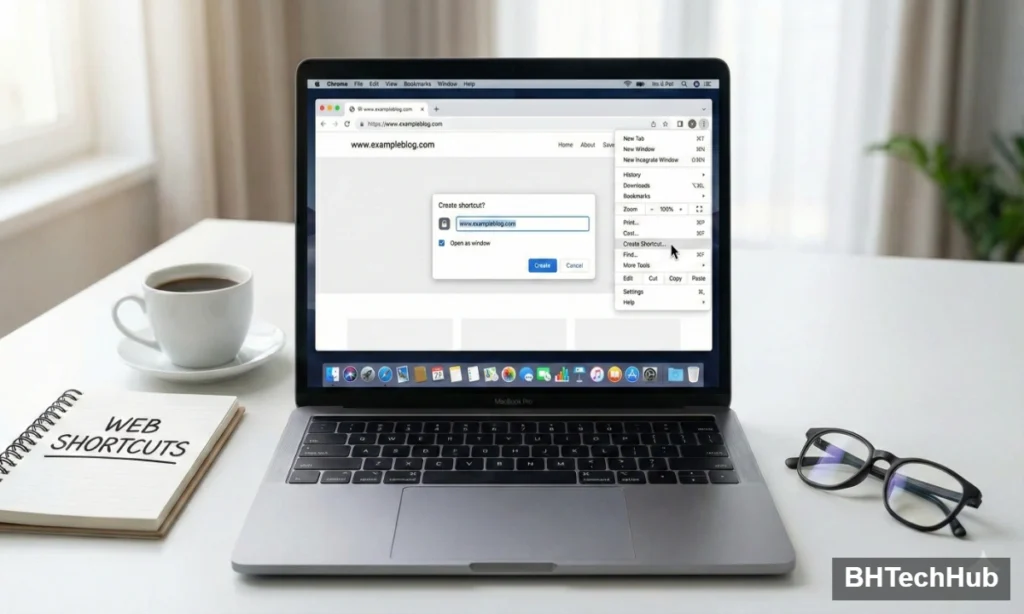
- Click the three vertical dots (menu) in the top-right corner.
- Hover over Save and share (or “More tools” in older versions).
- Click Create shortcut…
- A pop-up will appear. Check the box that says “Open as window” if you want that app-like feel, then click Create. The shortcut will automatically be added to your desktop.
For Microsoft Edge:
- Go to the website you want to save.
- Click the three horizontal dots in the top-right corner.
- Hover over Apps.
- Click Install this site as an app.
- Name your shortcut and click Install. Edge will even ask if you want to pin it to your taskbar or start menu for even faster access.
Method 3: The Manual Desktop Method (Windows Only)
If your browser is closed and you already know the exact URL of the website, you can create a shortcut straight from your desktop.
- Right-click on an empty space on your Windows desktop.
- Hover over New and select Shortcut.
- A “Create Shortcut” wizard will pop up. Type or paste the full URL of the web page (e.g., https://www.example.com) into the location box.
- Click Next.
- Type a name for your shortcut (e.g., “My Favorite Blog”) and click Finish.
Method 4: How to Create a Shortcut on Mobile Devices
You don’t just need shortcuts on your computer; they are incredibly useful on your smartphone, too!
For iPhone (Safari):
- Open Safari and go to the web page.
- Tap the Share icon at the bottom of the screen (the square with an arrow pointing up).
- Scroll down the menu and tap Add to Home Screen.
- Edit the name if you’d like, then tap Add in the top-right corner. The website will now appear as an app icon on your phone!
For Android (Chrome):
- Open Google Chrome and navigate to the website.
- Tap the three vertical dots in the top-right corner.
- Tap Add to Home screen.
- Confirm the name and tap Add. Depending on your phone, you may need to tap Add automatically or drag the icon to your home screen.
Frequently Asked Questions (FAQs)
How do I change the icon of my desktop website shortcut?
By default, your shortcut might just show your default browser’s logo. If you want to customize it (on Windows), right-click the shortcut, select Properties, go to the Web Document tab, and click Change Icon. You can browse your computer for any .ico image file to use instead. On a Mac, you can copy an image, right-click the shortcut, select Get Info, click the small icon in the top left of the info window, and press Cmd + V to paste the new image.
Can I pin a website shortcut to my taskbar or dock?
Yes! If you use the “Install as App” method in Chrome or Edge (Method 2 above), those browsers will automatically give you the option to pin the website directly to your Windows Taskbar or Mac Dock. You can also simply drag an existing shortcut from your desktop down to your taskbar/dock to pin it.
Why isn’t the drag-and-drop method working for me?
If you are trying to drag the padlock icon to your desktop and nothing is happening, make sure your browser window is not in full-screen mode. You must be able to see a piece of your desktop background behind the browser window for the drag-and-drop action to register.
Do website shortcuts take up a lot of storage space?
Not at all. A website shortcut is essentially just a tiny text file containing the URL of the website. It takes up a fraction of a kilobyte, so you can create as many as you need without worrying about filling up your computer or phone’s storage.
How do I delete a shortcut if I don’t need it anymore?
Deleting a shortcut is as easy as deleting any other file. On a computer, simply right-click the shortcut and select Delete (or drag it to your Recycle Bin/Trash). On a mobile device, press and hold the app icon on your home screen and select Remove or Delete Bookmark. This will only delete the shortcut, not your browser history or your account on that website.
Final Thoughts
Learning how to create a shortcut for internet web pages is a tiny technical trick that pays off big time in daily convenience. Whether you use the drag-and-drop method on a Mac, the “Install as App” feature on Edge, or add a quick link to your iPhone’s home screen, you’re streamlining your digital life.
Take a few minutes today to set up shortcuts for your most-visited sites—your future self will thank you