
It is incredibly frustrating when you sit down to watch a video—whether it’s a family memory or a downloaded movie—only to be greeted by a black screen and a pop-up reading: “Can’t play. This item was encoded in a format that’s not supported.” If you are searching for how to fix missing codec 0xc00d5212, you are in the right place. Your video file is likely safe; this error simply means your computer doesn’t currently have the right software (the codec) to decode the video data.
This error usually pops up in the default Windows Movies & TV app or Windows Media Player, especially when trying to play .AVI, .MKV, or .MP4 files. Fortunately, your video file is likely safe. This error simply means your computer doesn’t currently have the “decoder ring” (the codec) needed to understand the video data.
Here is a comprehensive guide to fixing the missing codec 0xc00d5212 error on both Windows 11 and Windows 10, ordered from the easiest workaround to more advanced troubleshooting.
Table of Contents
The Quickest Way to Fix Missing Codec 0xc00d5212
What Causes the 0xc00d5212 Error?
Before jumping into the fixes, it helps to understand why this happens. The most common culprits include:
- Missing Codecs: The media player lacks the specific audio or video codec required to decode the file.
- Unsupported File Formats: The default Windows player struggles with certain container formats.
- Outdated Display Drivers: Obsolete graphics drivers can interfere with video playback.
- Corrupted Video Files: The file itself may have been damaged during download or transfer.
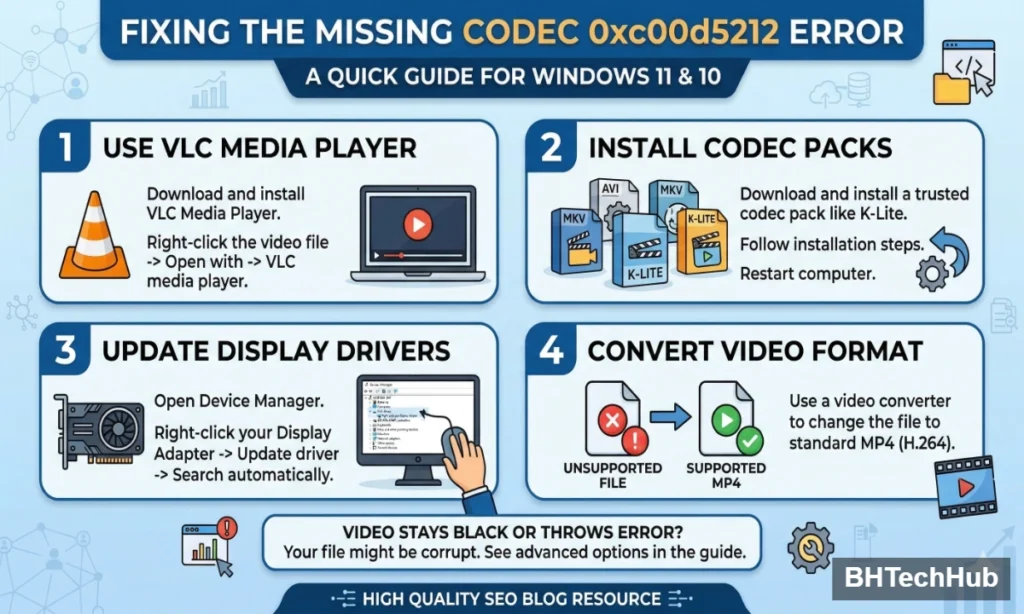
Fix 1: The Quickest Solution – Use VLC Media Player
If you just want to watch your video right now and don’t want to mess with system settings, switching your media player is the easiest and most effective solution.
The default Windows media players are notoriously limited in their format support. VLC Media Player, on the other hand, is a free, open-source player that comes with almost every audio and video codec built right in.
- Download VLC Media Player from the official VideoLAN website.
- Install the software.
- Right-click your problematic video file, hover over Open with, and select VLC media player.
If the video plays, the issue is purely a missing codec in the Windows app. You can set VLC as your default player to avoid this entirely in the future.
Fix 2: Install the K-Lite Codec Pack
If you prefer to keep using the default Windows Movies & TV app or Windows Media Player, you will need to install the missing codecs manually. The safest and most comprehensive way to do this is by installing a trusted codec pack.
- Navigate to a reputable download site for the K-Lite Codec Pack (the “Basic” or “Standard” version is plenty for most users).
- Download the installer and run it.
- Follow the on-screen installation wizard. The default settings are perfectly fine for standard use.
- Restart your computer to ensure Windows recognizes the new codecs.
- Try playing your video again.
Fix 3: Update Your Display Drivers
Sometimes, media playback errors are caused by an outdated or buggy graphics driver rather than a missing codec. Updating your display adapter can often clear up error 0xc00d5212.
- Press the Windows Key + X and select Device Manager from the menu.
- Click the arrow next to Display adapters to expand the list.
- Right-click your graphics card (e.g., Intel, NVIDIA, or AMD) and select Update driver.
- Choose Search automatically for drivers.
- If Windows finds an update, follow the prompts to install it. Note: You can also visit your graphics card manufacturer’s website directly to download the absolute latest drivers.
Fix 4: Convert the Video File Format
If you only have one stubbornly refusing video, converting it into a universally accepted format (like standard MP4 with H.264 encoding) can bypass the codec error entirely.
- Use a safe, free online video converter or dedicated software like HandBrake.
- Upload or import your video.
- Set the output format to MP4 and the video codec to H.264.
- Start the conversion. Once finished, play the newly converted file in your default player.
Fix 5: Repair a Corrupt Video File
If none of the above fixes work, and the video refuses to play even in VLC Media Player, the file itself might be corrupted.
Interestingly, VLC has a built-in feature to fix corrupted .AVI files:
- Open VLC and click on Tools > Preferences.
- Click on the Input / Codecs tab at the top.
- Scroll down to the Files section and look for Damaged or incomplete AVI file.
- Change the dropdown menu from “Ask for action” to Always fix.
- Click Save and try playing the file again.
Note: If your file is severely corrupted and isn’t an AVI, you may need to look into premium video repair software, or simply redownload/re-transfer the file from its original source.
Fix Missing Codec 0xc00d5212 by Updating Display Drivers
Sometimes, out-of-date graphics drivers cause this playback error rather than a broken video file. To successfully fix missing codec 0xc00d5212, you should ensure your PC’s display adapters are fully updated. If you are interested in keeping your system running smoothly, check out our other tech guides on optimizing your Windows PC Updating your drivers via the Device Manager often resolves the codec issue immediately.