
Is your computer acting up, crashing frequently, or running noticeably slower than usual? Whether you are dealing with a stubborn virus, a faulty driver, or an operating system glitch, booting your computer into Safe Mode is often the best first step for troubleshooting.
In this comprehensive guide, we will walk you through exactly how to open Safe Mode on Windows 11, Windows 10, and Mac computers so you can diagnose and fix your tech headaches quickly.
Table of Contents
What is Safe Mode?
Safe Mode is a diagnostic startup mode in computer operating systems. When you boot into Safe Mode, your computer starts with a minimal set of drivers and services. No third-party software or unnecessary startup programs will load.
Why use it? If an issue doesn’t happen in Safe Mode, it means default settings and basic device drivers aren’t causing the problem. This helps you narrow down the culprit to a recently installed app, driver update, or malware.
How to Boot into Safe Mode in Windows (11 & 10)
Windows 10 and 11 share almost identical processes for entering Safe Mode. Here are the two most reliable methods depending on whether you can actually log into your PC.
Windows 10 and 11 share almost identical processes for entering Safe Mode. Here are the two most reliable methods depending on whether you can actually log into your PC. For a deeper technical dive, you can also reference Microsoft’s official Safe Mode documentation
. (<- External DoFollow Link)
Method 1: From Settings (If your PC boots normally)
If you can still log into Windows, this is the easiest way to access Safe Mode.
- Press the Windows Key + I to open your Settings.
- For Windows 11: Go to System > Recovery.For Windows 10: Go to Update & Security > Recovery.
- Under Advanced startup, click the Restart now button.
- Your PC will restart to the “Choose an option” screen.
- Select Troubleshoot > Advanced options > Startup Settings > Restart.
- After your PC restarts, you’ll see a list of options. Press 4 or F4 to start your PC in Safe Mode. (Press 5 or F5 if you need internet access for Safe Mode with Networking).
Method 2: From the Sign-in Screen (If you can’t log in)
If your computer turns on but you can’t get past the login screen, use this shortcut:
- On the Windows sign-in screen, press and hold the Shift key while you click the Power button > Restart in the lower-right corner of the screen.
- After your PC restarts, you will be taken to the “Choose an option” screen.
- Follow the same path as above: Troubleshoot > Advanced options > Startup Settings > Restart.
- Press 4 or F4 to boot into Safe Mode.
How to Open Safe Mode on Mac
Starting your Mac in Safe Mode depends on the type of processor your Mac uses: Apple Silicon (M-series chips) or an Intel processor.
For Mac with Apple Silicon (M1, M2, M3)
- Shut down your Mac completely. (Apple menu > Shut Down).
- Press and hold the Power button until you see “Loading startup options” on the screen.
- Select your main startup disk (usually named “Macintosh HD”).
- Press and hold the Shift key, then click Continue in Safe Mode.
- Log into your Mac. You might be asked to log in twice.
For Intel-Based Mac
- Turn on or restart your Mac, then immediately press and hold the Shift key.
- Release the Shift key when you see the login window.
- Log into your Mac.
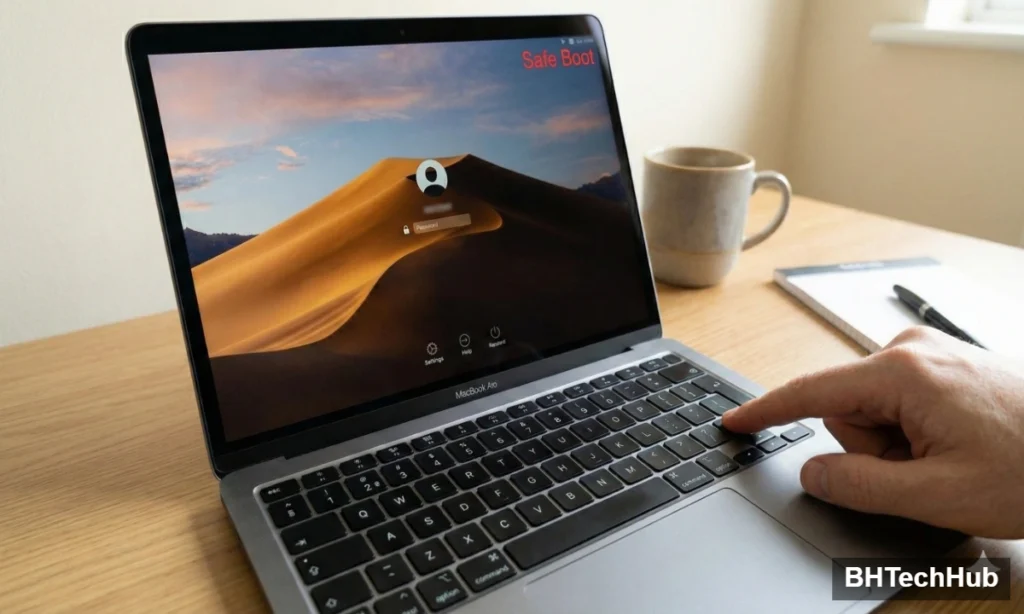
Note: You will know you are in Safe Mode because the words “Safe Boot” will appear in red in the upper-right corner of the login window.
How to Exit Safe Mode
Getting out of Safe Mode is incredibly simple for both Windows and Mac:
- Simply restart your computer. Do not press any additional keys during the startup process. Your computer will automatically boot back into its normal operating mode.
(If Windows is stubbornly stuck in Safe Mode, press Windows Key + R, type msconfig, go to the Boot tab, and uncheck Safe boot, then restart).
Frequently Asked Questions (FAQs)
Will I lose my files if I start in Safe Mode?
No. Booting into Safe Mode does not delete any of your personal files, documents, or photos. It merely temporarily disables non-essential programs from running.
Why does my screen look weird in Safe Mode?
Because Safe Mode only loads basic graphics drivers, your screen resolution will likely be much lower than normal, making icons and text look unusually large or stretched. This is completely normal!
Can I run a virus scan in Safe Mode?
Yes! In fact, running an antivirus scan in Safe Mode is highly recommended because malware is often prevented from running and hiding itself in this state.
Pingback: 3 Ways to Resize Desktop Icons Quickly: Increase & Decrease Size
Comments are closed.