
If you are looking for a way to open windows programs maximized by default, you are in the right place. We’ve all been there. You click on your web browser or favorite productivity app, ready to get to work, and it opens in a tiny, frustrating little box in the corner of your screen. You click the maximize button, close the app later, and the next time you open it—it’s back in that tiny box.
If you are tired of manually resizing your windows every time you launch an application, this guide will help. We will walk you through the most effective ways to make sure you always open windows programs maximized without having to click the maximize button ever again.
Table of Contents
Method 1: Use Shortcut Properties to Open Windows Programs Maximized
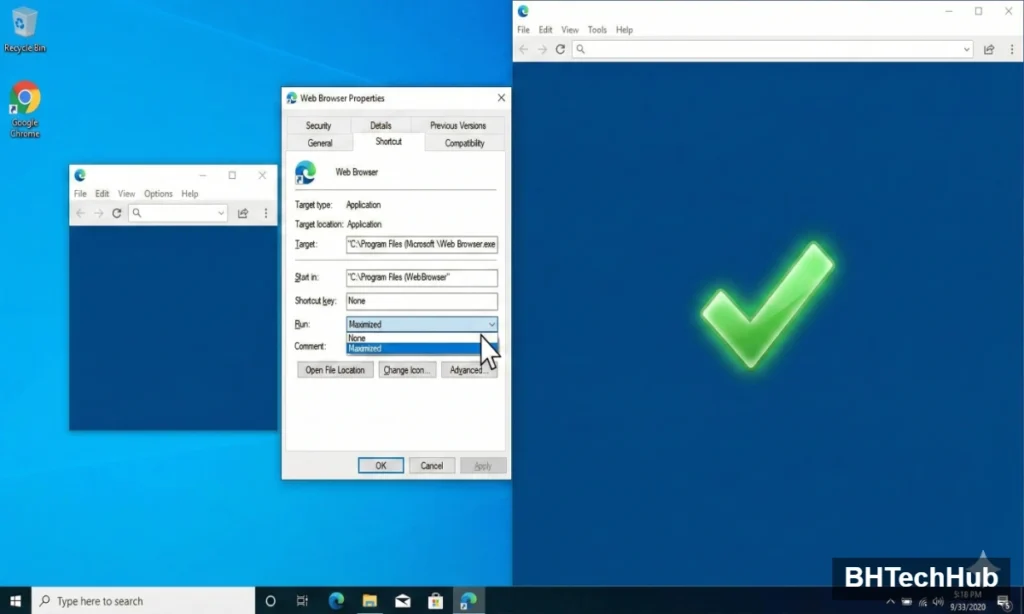
The absolute best way to force an app to open maximized is by tweaking its desktop or taskbar shortcut. Windows has a built-in feature specifically designed for this.
Here is how to do it:
- Locate the Shortcut: Find the desktop icon of the program you want to maximize.Note: If the app is pinned to your taskbar, right-click the icon, then right-click the name of the program in the jump list, and select Properties.
- Open Properties: Right-click the shortcut and select Properties from the context menu.
- Go to the Shortcut Tab: Ensure you are on the tab labeled Shortcut.
- Change the Run State: Look for the drop-down menu next to the word Run. By default, it will say “Normal window.” Click the drop-down and select Maximized.
- Save and Apply: Click Apply and then OK.
The next time you use that specific shortcut to open the program, it will stretch across your entire screen.
Method 2: The “Drag and Close” Memory Trick
Sometimes, Windows just forgets your preferences. Fortunately, you can physically “teach” the operating system to remember the exact size and position of a window.
Follow these steps:
- Open the App: Launch the stubborn program.
- Do Not Click Maximize: Instead of clicking the square “Maximize” button at the top right, manually drag the edges of the window until it fills your entire screen.
- The Magic Step: Hold down the Ctrl and Shift keys on your keyboard simultaneously.
- Close the App: While holding those keys, click the red X in the top right corner to close the program.
When you reopen the app, Windows should remember the exact dimensions you set before closing it.
Method 3: Fixing Stubborn Browsers (Chrome, Edge, Firefox)
Web browsers based on Chromium (like Google Chrome and Microsoft Edge) are notorious for ignoring Windows shortcut rules. If Method 1 didn’t work for your browser, you can force it using a command-line switch.
- Right-click your browser shortcut and open Properties.
- Look at the Target field (it will have a long file path ending in
.exe"). - Click inside the Target box, go to the very end of the text, and add a single space.
- Type the following exactly as written:
--start-maximized - Click Apply and OK.
Example of a correct Target field: "C:\Program Files\Google\Chrome\Application\chrome.exe" --start-maximized
Method 4: Master Your Keyboard Shortcuts
If you have apps that simply refuse to cooperate with any of the methods above, learning the Windows maximization keyboard shortcut will save your sanity. It is often faster than dragging your mouse to the corner of the screen.
- To Maximize instantly: Press the Windows Key + Up Arrow.
- To Restore down: Press the Windows Key + Down Arrow.
- To Minimize completely: Press the Windows Key + Down Arrow twice.
Summary Table: Which Method Should You Use?
| Method | Best For | Difficulty |
| Shortcut Properties | Almost all standard desktop applications. | ⭐ Very Easy |
| Drag & Close Trick | Apps that ignore the properties menu. | ⭐ Easy |
| Command Line Switch | Web browsers like Chrome, Edge, and Brave. | ⭐⭐ Medium |
| Keyboard Shortcuts | Quick fixes on the fly for uncooperative apps. | ⭐ Very Easy |
Final Thoughts
Taking control of how your applications launch is a simple but highly effective way to streamline your workflow and save you a few frustrating clicks every day. Try the Shortcut Properties method first, as it solves the problem 90% of the time!