
Most of us spend hours every single day with our hand resting on a computer mouse, yet we rarely give it a second thought. Whether you are navigating massive spreadsheets, editing video, gaming, or just browsing the web, optimizing how you use your mouse can drastically improve your daily productivity and save you from long-term wrist pain.
If you are ready to upgrade your workflow, here are the top 10 computer mouse tips to help you work faster, smarter, and more comfortably.
Table of Contents
1. Adjust Your Pointer Precision and DPI
You don’t have to settle for the default speed of your mouse cursor. If you find yourself constantly overshooting icons or having to drag your mouse across the desk just to reach the other side of the screen, it’s time to adjust your settings.
- For Windows: Go to Settings > Bluetooth & devices > Mouse > Additional mouse settings to adjust the pointer speed.
- For Mac: Go to System Settings > Mouse > Tracking Speed.
- DPI Switch: If you have a gaming or productivity mouse, look for a physical DPI (Dots Per Inch) button on top to instantly change the sensitivity on the fly.
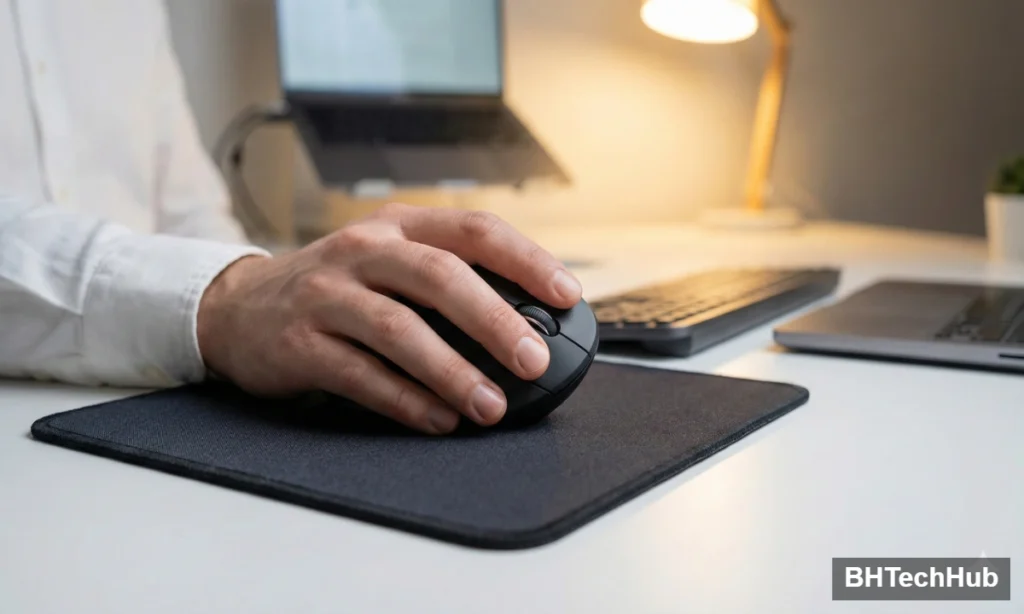
2. Master the “Middle Click”
The scroll wheel isn’t just for scrolling; it is also a button! The “middle click” is one of the best-kept secrets for web browsing.
- Open tabs: Middle-click a link to open it instantly in a new background tab without leaving your current page.
- Close tabs: Middle-click anywhere on an open tab at the top of your browser to close it immediately (no need to hunt for the tiny ‘X’).
3. Customize Your Extra Buttons
If your mouse has extra buttons on the side (usually positioned where your thumb rests), do not let them go to waste. By default, these usually act as “Forward” and “Back” buttons in your web browser. However, using software like Logitech Options, Razer Synapse, or a third-party app like X-Mouse Button Control, you can remap these buttons to do almost anything: mute your microphone, copy/paste, or switch between virtual desktops.
4. Enable the “Snap To” Feature (Windows)
If you do a lot of data entry or constantly click through dialog boxes, this Windows feature is a massive time-saver. When enabled, your mouse cursor will automatically jump to the default button (like “OK” or “Apply”) whenever a new dialog box opens.
- How to enable: Go to Additional mouse settings > Pointer Options tab > check Automatically move pointer to the default button in a dialog box.
5. Optimize Your Scroll Wheel Settings
Do you feel like you are endlessly spinning your scroll wheel just to get to the bottom of a webpage? You can change how many lines of text your screen scrolls with each notch of the wheel. Bump this up in your operating system’s mouse settings to navigate long documents and webpages much faster.
6. Prioritize Ergonomics
Repetitive Strain Injury (RSI) and Carpal Tunnel Syndrome are real risks for heavy computer users. To protect your wrist:
- Keep your wrist straight, not bent at an unnatural angle.
- Pivot from your elbow rather than just your wrist.
- Consider an ergonomic mouse (like a vertical mouse or a trackball) if you are already experiencing discomfort.
7. Keep the Sensor and Glides Clean
If your mouse cursor is suddenly stuttering or jumping across the screen, it is probably not broken—it’s just dirty. Dust, hair, and debris can easily get trapped in the optical sensor underneath. Give the sensor a quick wipe with a microfiber cloth or a cotton swab dipped in a tiny amount of rubbing alcohol. Don’t forget to wipe down the “skates” (the smooth pads on the bottom) so it glides effortlessly.
8. Use a High-Quality Mousepad
Using your mouse directly on a glossy desk, glass table, or uneven surface confuses the optical sensor and wears down the bottom of the mouse. A good cloth or hard mousepad provides consistent tracking, reduces wear and tear, and offers a bit of extra cushioning for the heel of your hand.
9. Combine Mouse Actions with Keyboard Modifiers
Your mouse becomes infinitely more powerful when paired with your keyboard.
- Ctrl + Scroll Wheel (Windows) / Cmd + Scroll Wheel (Mac): Instantly zoom in and out of web pages, Word documents, or image editors.
- Shift + Scroll Wheel: In many applications, this allows you to scroll horizontally instead of vertically—perfect for wide Excel spreadsheets.
10. Invest in the Right Mouse for Your Grip
Not all mice are created equal, and neither are our hands. Using a mouse that is too small will cause your hand to cramp, while one that is too large will reduce your accuracy. Identify your grip style (palm, claw, or fingertip grip) and buy a mouse that fits your hand size and workflow perfectly.
Conclusion
how optimizing your mouse is just as important as choosing between an HDD, SSD, or NVMe,
Your computer mouse is an extension of your hand. By taking a few minutes to tweak your settings, clean your hardware, and learn a few new shortcuts, you can dramatically improve your digital workflow.