
In an era of sleek graphical user interfaces (GUIs), the flashing cursor of the Command Prompt can feel like a relic from the past. However, for IT professionals, developers, and power users, the Command Line Interface (CLI) remains an indispensable tool.
Whether you are looking to automate boring tasks, troubleshoot network issues, or simply look like a hacker in a coffee shop, mastering Windows CMD commands is a superpower.
This guide covers the essential DOS and Windows command line commands you need to navigate your computer faster than any mouse click could allow.
Table of Contents
Why Learn Windows CMD Commands?
Before we dive into the commands, it is important to understand why the Command Prompt (often referred to as MS-DOS in legacy contexts) is still relevant:
- Speed: Perform complex file operations in seconds.
- Automation: Script repetitive tasks using batch files (
.bat). - Low Resource Usage: It works even when the graphical interface crashes.
- Power: Access system configurations that are hidden deep in Windows Settings menus.
1. Essential Windows CMD Commands for File Navigation
These are the bread and butter of the command line. You cannot master the terminal without knowing how to move around.
CD (Change Directory)
This is the most used command. It changes the folder you are currently working in.
- Syntax:
cd \path\to\folder - Tip: Type
cd ..to move up one folder level.
DIR (Directory)
Lists all files and subdirectories in the current folder.
- Syntax:
dir - Pro Tip: Use
dir /wfor a wide list format ordir /pto pause the scroll on long lists.
MKDIR & RMDIR (Make/Remove Directory)
Create or delete folders instantly.
- Create:
mkdir NewFolder - Delete:
rmdir NewFolder(Note: The folder usually needs to be empty).
ROBOCOPY (Robust File Copy)
The “supercharged” version of the standard copy or xcopy commands. It is designed for reliable mirroring of directories and can resume interrupted transfers.
- Syntax:
robocopy C:\source M:\destination /mir - Why use it: It preserves file attributes and timestamps, making it essential for backups.
2. Top Windows CMD Commands for Network Troubleshooting
Is your internet acting up? These commands are the first step in diagnosing connectivity issues.
PING
Sends data packets to a specific IP address or domain to check if it is reachable.
- Syntax:
ping google.com - Usage: High “latency” (ms) indicates a slow connection; “Request timed out” indicates a break in the connection.
IPCONFIG
Displays your current TCP/IP network configuration values.
- Syntax:
ipconfig - Advanced: Use
ipconfig /flushdnsto clear your DNS cache, which often fixes website loading errors.
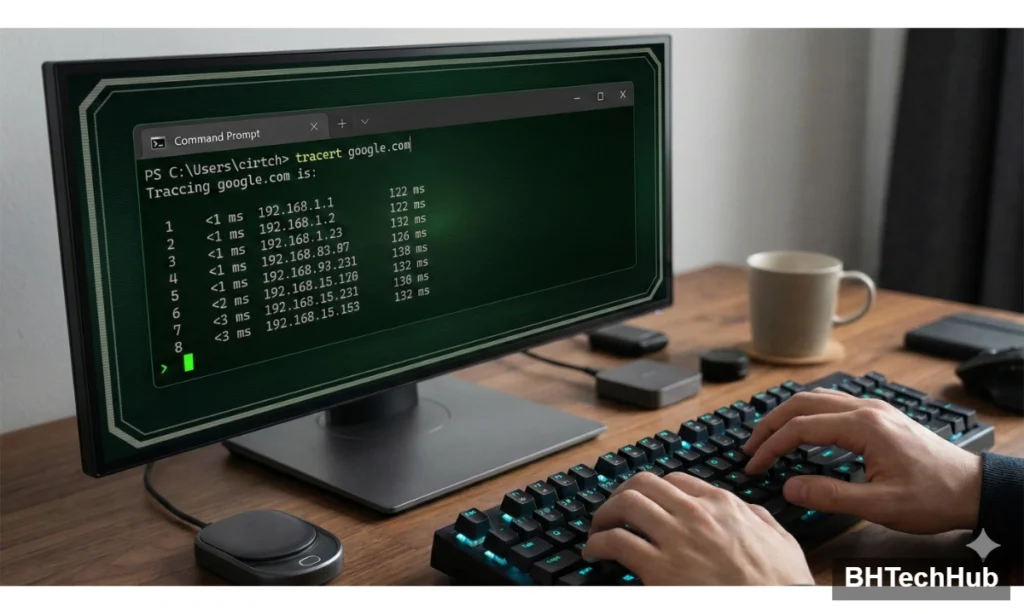
TRACERT (Trace Route)
Traces the path packets take to reach a destination, showing every router (hop) along the way.
- Syntax:
tracert google.com - Usage: Great for identifying exactly where a connection is failing (e.g., your router, your ISP, or the destination server).
3. System Management & Disk Health
Link this to your PC Hardware category or a specific post about RAM/SSD upgrades.
Keep your PC healthy and retrieve vital system stats without digging through the Control Panel.
SFC (System File Checker)
Scans and restores corrupted Windows system files.
- Syntax:
sfc /scannow - Note: You must run the Command Prompt as an Administrator to use this.
CHKDSK (Check Disk)
Checks the file system and file system metadata of a volume for logical and physical errors.
- Syntax:
chkdsk C: /f - Usage: If your computer shuts down improperly, running this ensures your hard drive isn’t corrupted.
TASKLIST & TASKKILL
View running processes and force-stop them—like Task Manager, but text-based.
- View:
tasklist - Kill:
taskkill /IM notepad.exe /F(Forces Notepad to close).
SYSTEMINFO
Displays detailed configuration information about a computer and its operating system, including RAM, BIOS version, and network card details.
- Syntax:
systeminfo
4. Useful Utilities & “Fun” Commands
| Command | Function |
CLS | Clears the screen. If your terminal is cluttered, this wipes the slate clean. |
COLOR | Changes the background and text color. Try color 0a for that classic Matrix hacker green. |
SHUTDOWN | Turns off the PC. Use shutdown /s /t 0 for an instant shutdown. |
HELP | The most important command. Type help [command] to learn how to use any tool. |
Conclusion: Start Scripting Today
While PowerShell and Windows Terminal are the modern successors, the classic Windows CMD commands remain a universal language for Windows administration. They are fast, reliable, and work on almost every Windows machine built in the last 30 years.
Start by memorizing the navigation commands (cd, dir), and slowly work your way up to networking tools. Before long, you’ll be navigating your OS faster than ever before.
Safety Warning: Some commands (like
del,format, ortaskkill) can cause data loss if used incorrectly. Always double-check your syntax before hitting Enter!