
Do you want to resize desktop icons quickly because they are too small to read or too cluttered? You don’t need to dig through complex display settings or change your screen resolution to fix them.
Whether you are looking to fit more files on your screen or need larger icons for better visibility, there are hidden shortcuts in Windows and Mac that let you resize desktop icons in a fraction of a second.
This guide covers the fastest methods to adjust your desktop layout using keyboard shortcuts and the mouse wheel, ensuring your screen looks exactly how you want it. If you are troubleshooting display issues, you might also want to check our guide on how to open Safe Mode to rule out driver problems.
Table of Contents
Method 1: The Mouse Scroll Trick (Fastest Method)
Works on: Windows 10, Windows 11
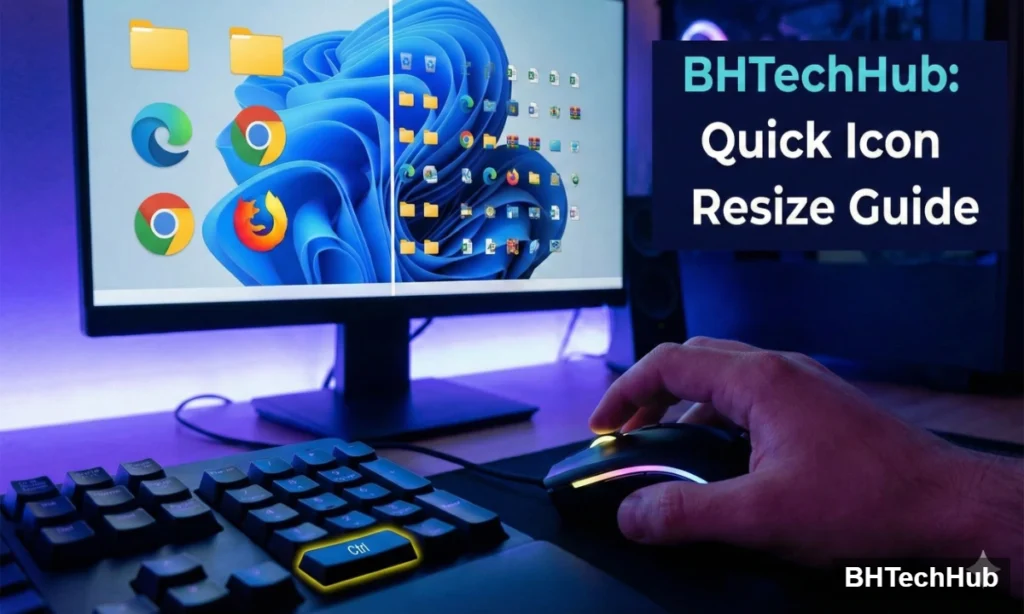
This is the absolute fastest way to resize icons. It offers the most control because you aren’t limited to “Small,” “Medium,” or “Large”—you can fine-tune the size to exactly what you want.
- Minimize all open windows so you are viewing your Desktop.
- Hold down the Ctrl key on your keyboard.
- While holding Ctrl, scroll your Mouse Wheel:
- Scroll Up to make icons Larger.
- Scroll Down to make icons Smaller.
Pro Tip: This trick also works inside File Explorer folders and web browsers (like Chrome) to zoom in and out of text!
Method 2: The “Instant Snap” Keyboard Shortcuts
Works on: Windows 10, Windows 11
If you prefer using the keyboard or want to snap your icons back to a standard default size instantly, Windows has built-in hotkeys for this.
Go to your desktop and press the following combinations:
- Ctrl + Shift + 1: Extra Large Icons
- Ctrl + Shift + 2: Large Icons
- Ctrl + Shift + 3: Medium Icons (Standard Default)
- Ctrl + Shift + 4: Small Icons
Most users find Ctrl + Shift + 4 perfect for maximizing screen real estate, while Ctrl + Shift + 2 is excellent for touchscreens or 4K monitors where icons might appear tiny.
Method 3: How to Resize Desktop Icons on Mac
Works on: macOS (Sonoma, Ventura, Monterey)
Apple handles desktop sizing differently. While the scroll wheel trick doesn’t work the same way on the macOS desktop, you can still adjust sizes quickly using the “View Options” panel.
- Click anywhere on your desktop to make sure Finder is active.
- Press the keyboard shortcut Cmd + J. (Or right-click the desktop and select Show View Options).
- A floating panel will appear. Look for the Icon Size slider.
- Drag the slider Right to increase size or Left to decrease size.
You can also adjust the Grid Spacing here. If your icons feel cluttered even after resizing, try increasing the grid spacing to give them more breathing room.
Why Resize Your Icons?
- For 4K Monitors: High-resolution screens can make standard icons look like microscopic dots. Increasing the size makes them readable again.
- For Organization: If you are a “power user” with 50+ files on your desktop, shrinking them allows you to see everything at a glance without scrolling.
- For Accessibility: Larger icons reduce eye strain and make clicking easier for users with visual impairments or motor control difficulties.
Frequently Asked Questions (FAQ)
Q: Does resizing icons change the font size of the file names? A: Yes, on Windows, as you increase the icon size, the text labels will slightly adjust to match. On Mac, you can control the “Text Size” independently in the Cmd + J menu.
Q: How do I resize the icons on my Taskbar? A: The desktop shortcuts discussed above won’t affect the Taskbar. To change Taskbar icon size in Windows 10, go to Settings > Personalization > Taskbar and toggle “Use small taskbar buttons.” In Windows 11, this feature was removed and requires a registry edit or third-party tools.
Q: Will this affect my game icons? A: No, this only changes the visual size of the shortcuts on your desktop. It does not change the resolution of your games or the properties of the files themselves.
Conclusion
You no longer have to squint at your screen or deal with a cluttered desktop. By mastering the Ctrl + Scroll trick on Windows or Cmd + J on Mac, you can adapt your interface to your needs in seconds.
Found this tip helpful? Check out more Windows and Mac guides right here on BHTechHub!